Check and publish before going public under ‘Preview’
Creator tutorial
Keep your editor beside you and follow along.
After you log in, go through five steps from your profile to the pre-publish check, one at a time. You can open the matching screen right from each step.
Your profile is the first thing visitors see on your page. Fill in your name, intro, and profile photo, then pick the address you'll share with others. Your name and your public address are separate, so check each one.
Follow these steps
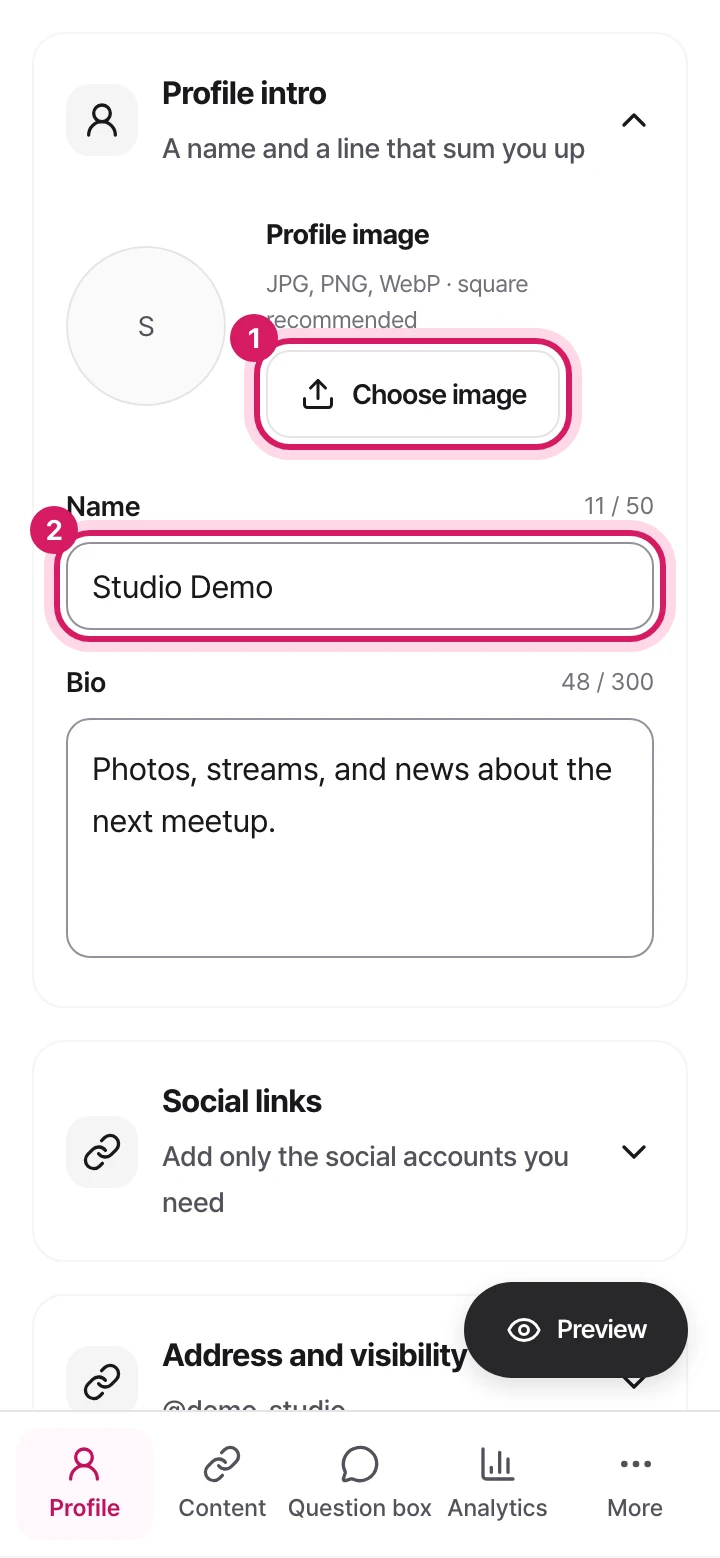
Upload your profile photo with ‘Choose image’
Write your name and intro
Log in and choose your address
When you first start, the address setup may open. Enter the address you want and select ‘Use this address’. If it says the address is already taken, try another combination and check again.
Fill in your profile intro
On the profile screen, enter your name, intro, and image under ‘Profile intro’. If you have social links, fill in those settings too. You don't have to add everything at once. Starting with your main intro and your most important link is fine.
Preview it and check that it saved
On a computer, look at the preview beside the form. On mobile, open the preview button. Either way you'll see what visitors will see. After saving your changes, look for the saved confirmation. Seeing it in the preview doesn't mean it's saved.
Good to know
Display name and intro
The name shown on your page and a short note about you. Say what you do and what visitors can find here.
Profile image
A photo or artwork that people can recognize you by. After uploading, check the preview to see what gets cropped and how it looks on a small screen.
Public address
The unique name that goes in your page's address. Use 3–20 characters of lowercase letters, numbers, and underscores. We check whether it's taken when you save.
One last check
After saving, make sure your name, intro, and image look right. Then read the address you'll share again in ‘Address and visibility’. If you change your address, check any links you've already shared.
My text saved, but the image didn't change
Images are uploaded separately. If you see a message that your profile info saved but the image upload failed, choose the image again and save. If an error is still showing, don't treat it as saved. Follow the message and try again.
Content is the list of items shown in order on your public page. It can hold anything from links to other sites to photos, videos, and schedules. Pick the type first, based on what you want visitors to see, and the fields you need appear next.
Follow these steps
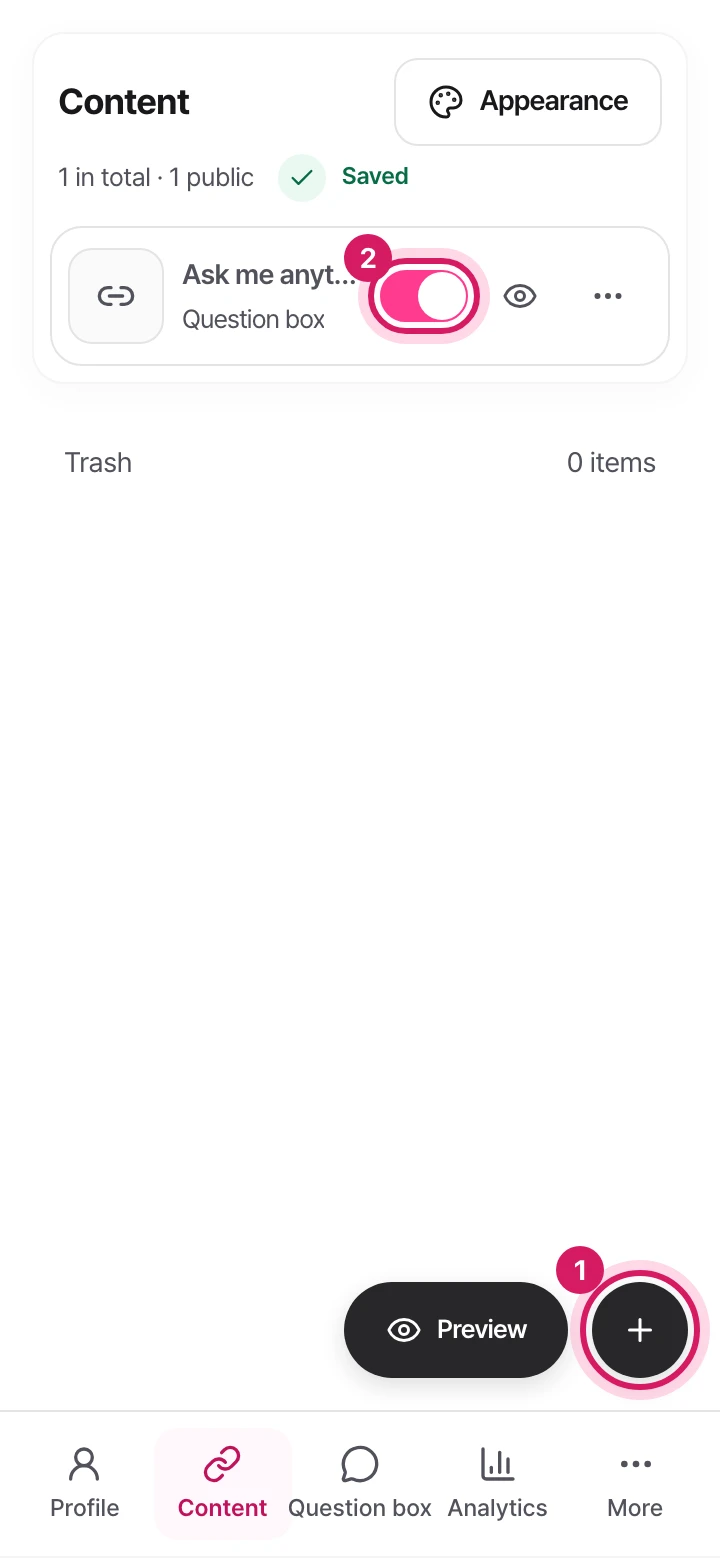
Add new content with the + button at the bottom right
Use the public switch to show or hide an item
Choose a type to add
Tap the add button on the content screen and pick an item type. For example, choose a link to send people to your stream channel, or a photo to show the photo itself.
Enter the material and a description
Add the address or file, then write a title and description. For external links, use the exact address that should open when a visitor taps. For items with display options, like image layout, pick a style while watching the real preview.
Check and add it
In the final check, confirm the title, where it links, and whether it's public. If an input error or upload failure shows up, fix that item and continue. When you're done, make sure the new item appears in your content list.
Manage order and visibility
Edit an existing item with the pencil button, and change the order with Move up or Move down in ‘More’. To hide something for now, turn off its public switch. Unlike deleting, the item stays in your list and is only hidden from your public page.
Good to know
Links, social, and support
Connect to other sites, social accounts, or an outside support page. A support item doesn't take payments inside Linkyung.
Photos, videos, and files
Use these to show an image, link to a video, or offer a file you've uploaded. Get the right material and a title ready for each type.
Calendar and event
A calendar gathers the events in the categories you choose. An event links to one specific event. The next chapter explains how to connect them.
One last check
Check that the item was added to your content list and that the public switch and order are what you intended. Opening the link yourself on your public page makes it easy to catch a wrong address.
The item I added doesn't show on my public page
First, check the item's public switch. If the page itself is private, others can't see anything either. Also look at whether anything went wrong during upload or adding, and whether the item actually saved to your list.
Where on a computer: Menu › Activity › Question box
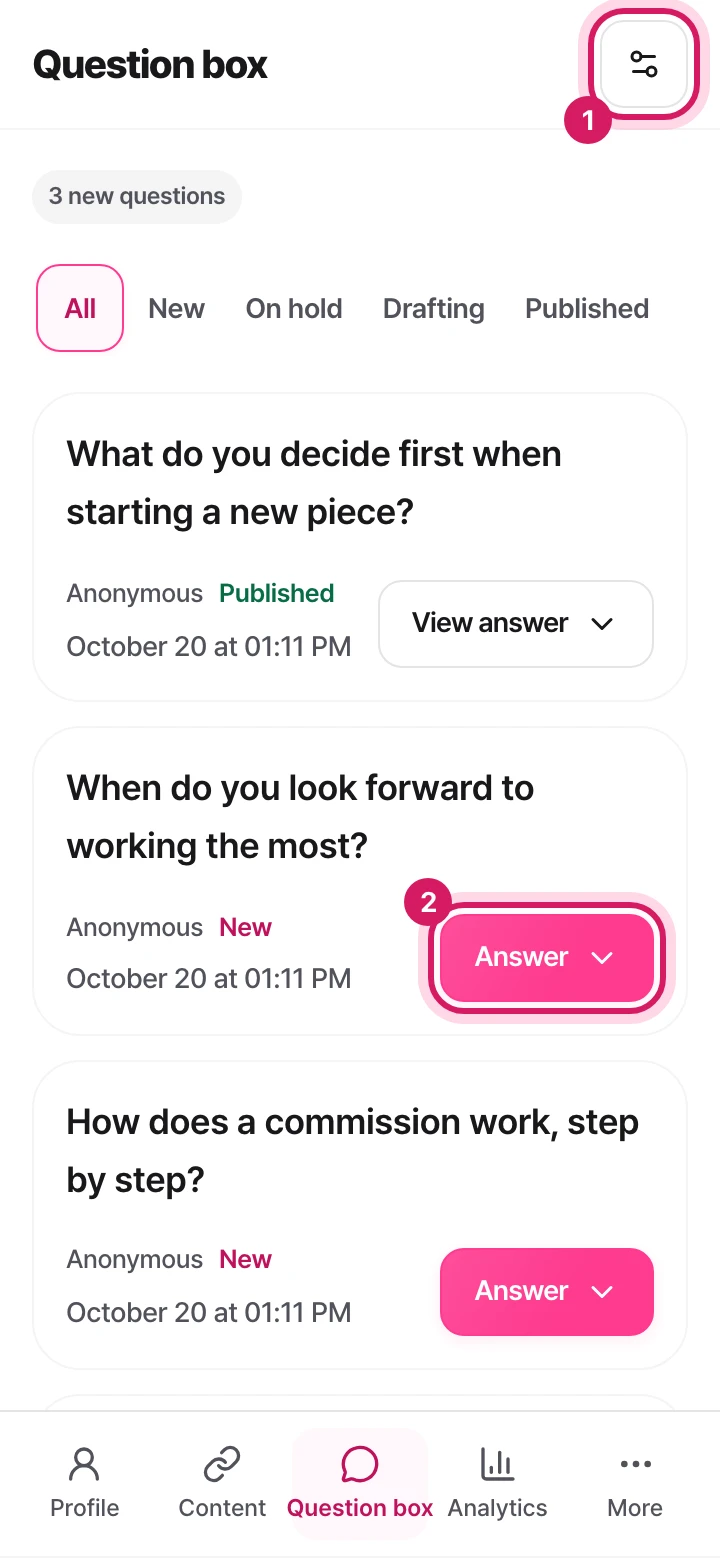
Your question box is where fans leave questions for you. Askers are anonymous by default, and only logged-in fans can add a nickname. Only you can see the questions you receive, and only the answers you make public are shown to others.
Follow these steps
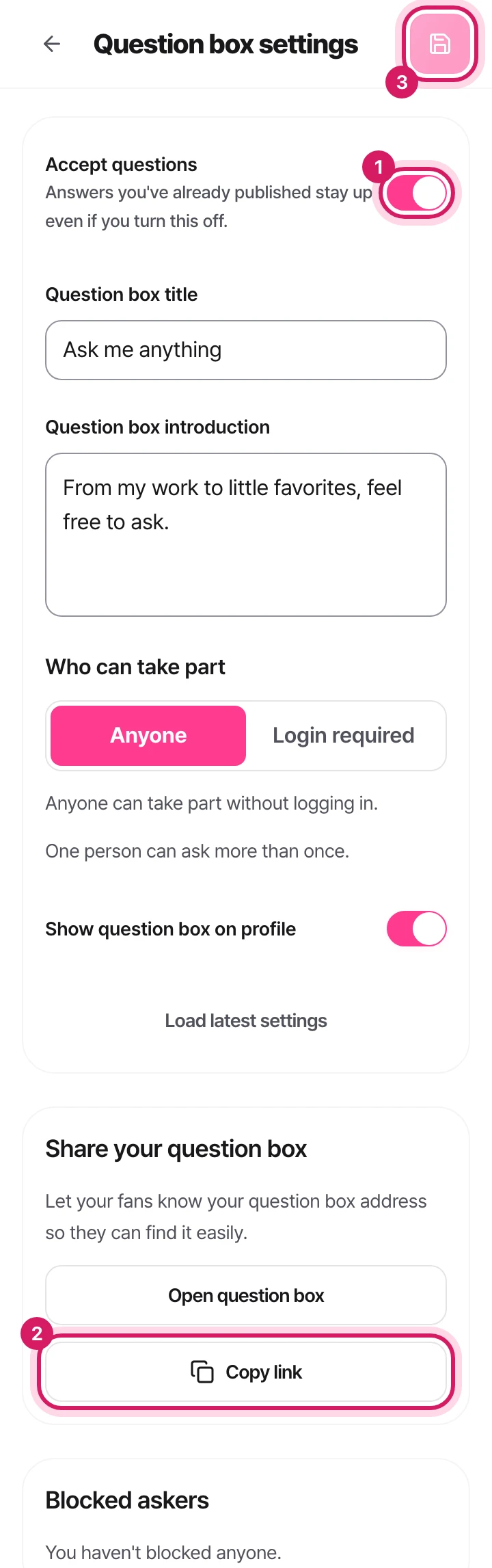
Turn on ‘Accept questions’
Copy your question box address with ‘Copy link’
Tap the save button at the top right to apply
Open the question box settings with the settings button
Tap ‘Answer’ to write your reply right there
Open your question box
Tap the settings button at the top right of the question box screen, turn on ‘Accept questions’, and set the title, intro, and who can ask. Tap the save button at the top right to apply it.
Share your question box address
Under ‘Share question box’ in settings, tap ‘Copy link’ and post it on your social accounts. Turn on ‘Show question box on profile’ so people can also reach it from your page.
Answer right on the card
In the list, tap ‘Answer’ on a question card to write your reply right there. Tap ‘Publish answer’ to make it public. If you don't want to publish yet, tap ‘Save draft’ in the More menu.
Share your published answers
Use the share button on a published card to send the answer link, or the X button to start a post with the answer and link already in it.
Good to know
Who can ask
‘Anyone’ lets people ask without logging in. ‘Login required’ lets only logged-in people ask.
Publishing answers
When you publish an answer, the question and answer appear under ‘Published answers’ on your profile and on the answer page. The asker shows up only as anonymous or the nickname they chose.
Hide and block
Hidden questions move to the ‘Hidden’ tab. If you block an asker, they can't send new questions with the same participant info. You can unblock in the question box settings.
One last check
Use ‘Open question box’ in settings to see the question box as visitors do and check the title and intro. New questions show up under the ‘New’ tab in your question box list.
People say they can't send a question from my question box address
‘Accept questions’ may be off, or your profile may still be private. Check that you turned on ‘Accept questions’ in the question box settings and saved, and that your page is public under ‘Address and visibility’ in your profile.
Here's the order: add your events in Schedules, then connect them to your public page from Content. It helps to think of adding events and building the calendar visitors see as two separate jobs.
Follow these steps
Sort and add your events
In Schedules, create the categories you need, then add a new event. Enter a title, date and time, and details, and pick the categories to connect. After adding it, check that the date and time in the list are correct.
Choose to gather events or show just one
On the content screen, add a calendar or an event. Use a calendar to collect your regular stream news in one place, and an event item to spotlight a specific upcoming event.
Connect it to your public page
For a calendar, choose the categories to show and how to display them. For an event item, pick one event. You can show several categories in one calendar, or split them into separate calendars. Check your choices, then finish adding the content.
Good to know
Category
A group for your events, like streams or meetups. One event can have several categories.
Calendar item
Gathers the events in the categories you choose. It can be shown as a calendar or as a monthly list.
Event item
Use it to feature one specific event. When a visitor taps it, the event's details open.
One last check
On the calendar on your public page, tap a date to see the event list, then tap one event to make sure its details open. Also check that the events listed match the categories you chose.
I made an event, but the calendar is empty
Check that the category on the event matches the category chosen for the calendar item. Adding an event in Schedules doesn't automatically add calendar content. If you added a new event while creating an item, go back to the content screen and pick it from the updated list.
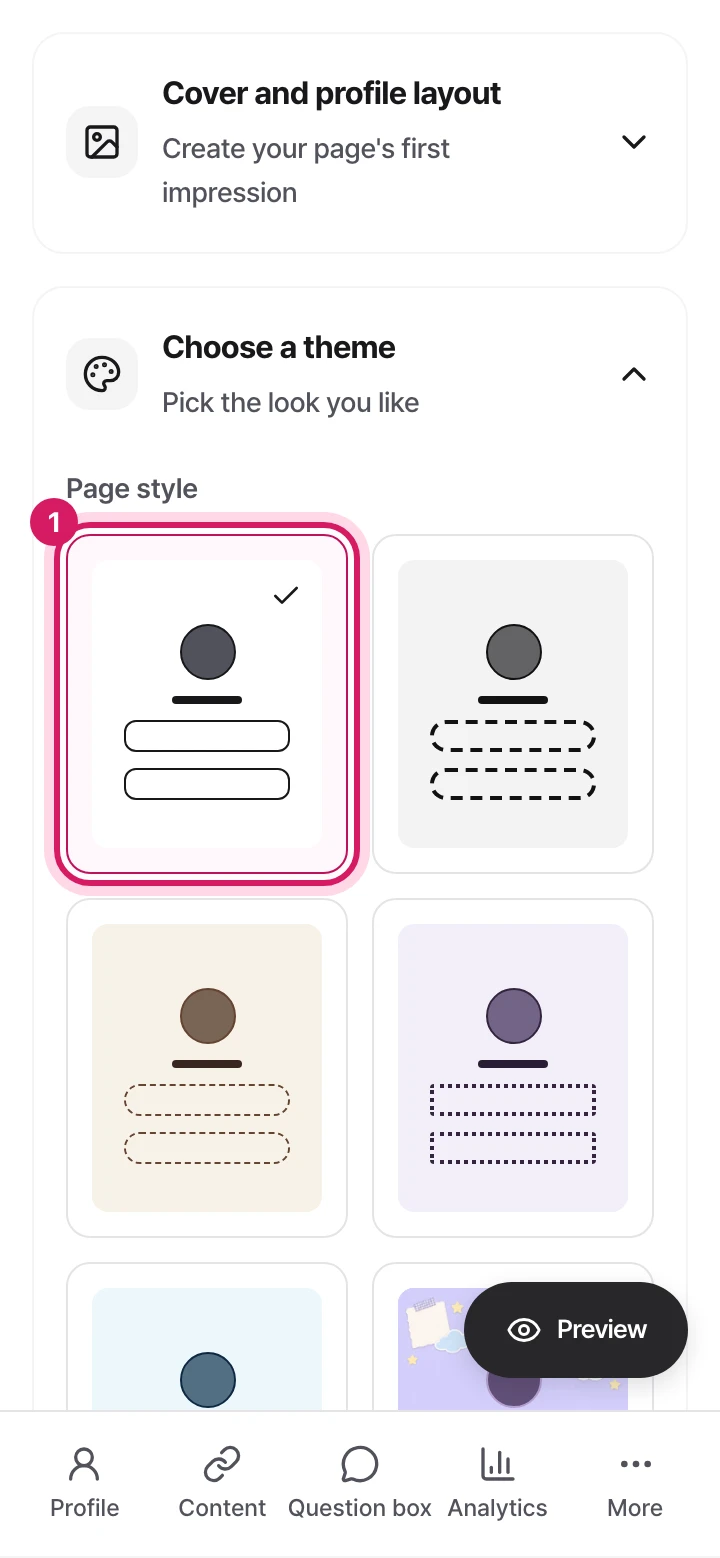
Appearance is where you set the mood of the public page visitors see. Pick a theme first, then adjust the background, content cards, and font in turn. You can open each setting and check it on the same screen.
Follow these steps
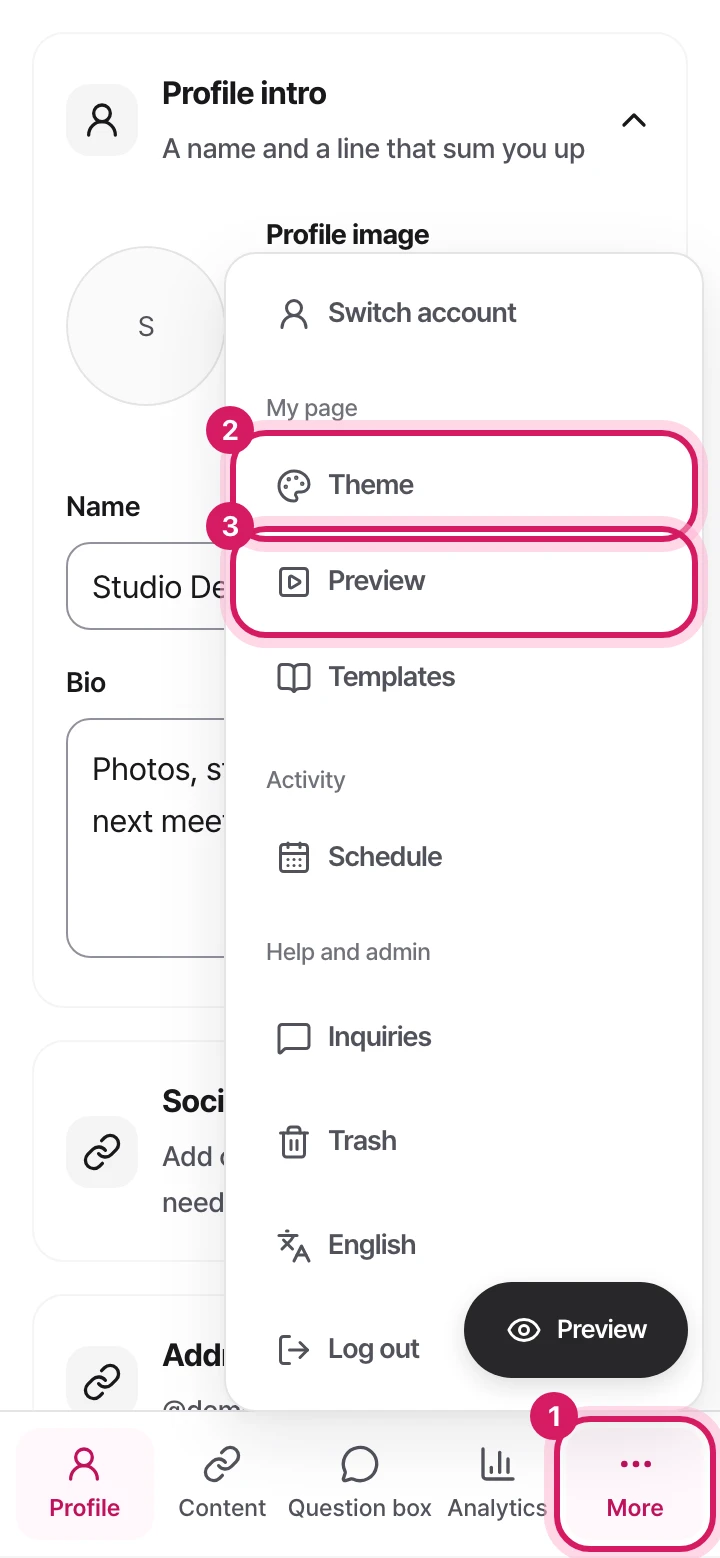
Pick a page style you like. It shows up right away in the preview on the right
Pick the overall mood first
On the Theme screen, choose the page style in ‘Choose a theme’, then pick the accent color in ‘Fine-tune’. Look at the preview with your real images and intro to find a mood that fits.
Fine-tune only what you need
To change the background, pick a background type and color or upload an image. Under ‘Content style’, adjust card corners, style, and alignment, and under ‘Font’, choose the feel of the text. Changing one thing at a time makes the difference easier to see.
Check it reads well, then save
Open the mobile preview with its button and scroll inside it to the end of the page. Check that text over photos, long link titles, and buttons are easy to see. Save when you like it, or select ‘Cancel’ to undo changes you haven't saved.
Good to know
Theme and accent color
The theme sets the basic look of your page, and the accent color sets the color you want to stand out. Check any color you pick in the preview, together with the background and text.
Page background
Choose from theme default, solid color, gradient, or image. If you pick an image background, the background image upload appears.
Content style and font
Adjust card corners, styles like borders and shadows, text alignment, and the font. If you choose ‘Theme default’, that setting uses the theme's own look.
One last check
After you see the saved confirmation, check on your public page that the background, cards, and font look the way you want. If an upload failed, don't assume the background image was saved.
I changed to dark mode, but my public page stayed the same
The light, dark, and system settings in the account menu only change the brightness of the screens you use to manage your page. The page others see uses the theme and background you saved in appearance, so change those there.
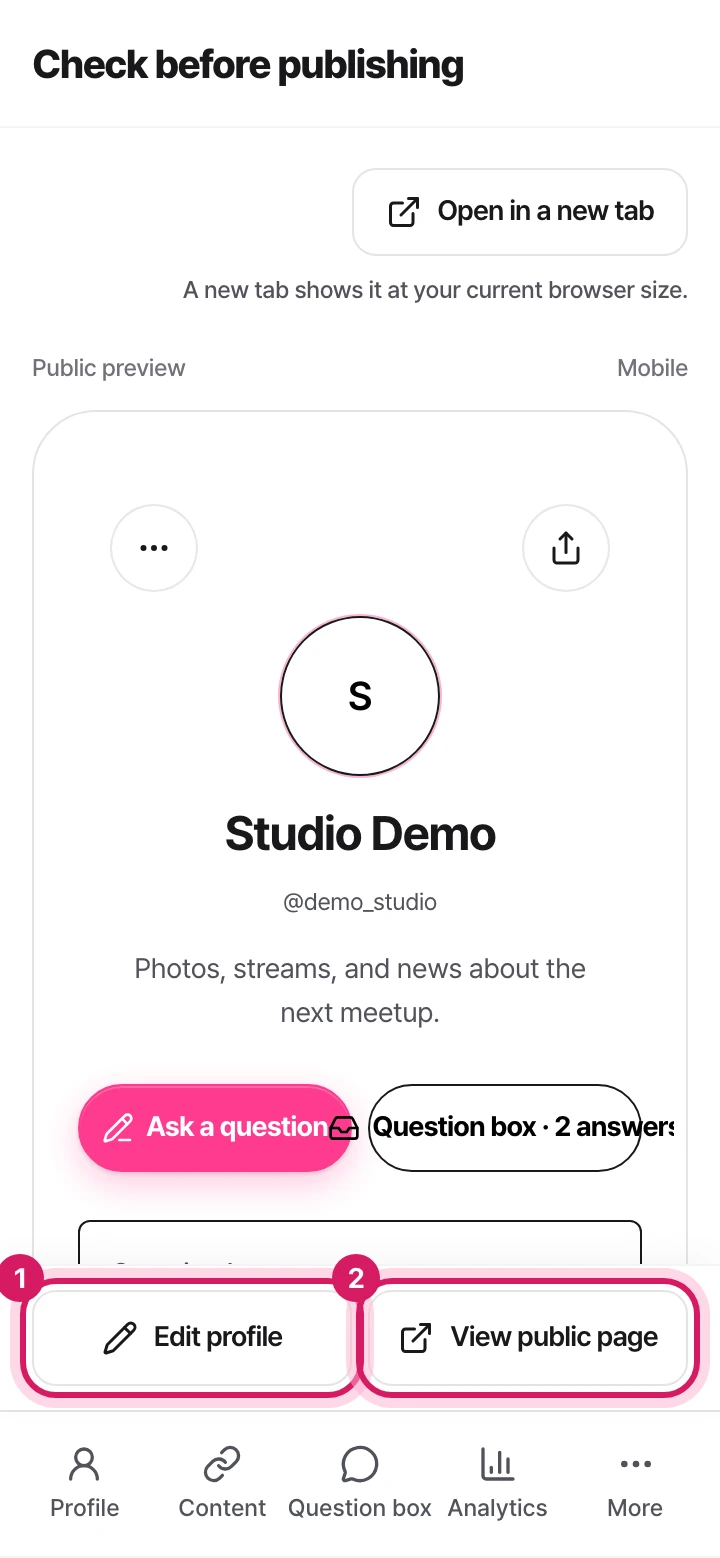
After saving your profile and content, check what others will see, then publish. The preview shows what you're editing, while the public page is what anyone can visit by address, so check that it's public before you share.
Follow these steps
If something needs fixing, go back with ‘Edit profile’
If it's public, open the real page with ‘View public page’. If it's still private, ‘Publish profile’ appears here instead
Save your edits
Finish saving your profile and appearance, and check the items you want to show in your content list. If there's an input error or a save failure, fix it first.
Look over the pre-publish screen
Go in through ‘Review and publish’ on your profile or through the preview, and check your name, photo, intro, and content order. If something needs fixing, go back with ‘Edit profile’, change it, and check again.
Publish your profile and check the address
Select ‘Publish profile’ and wait for the success message. Once it's public, ‘View public page’ opens the real page. Before you share the link, take a last look at where each item links and what you're making public.
Good to know
Save
Keeps what you've edited. It's different from publishing a private page for the first time.
Preview
A screen to check how your page looks. On the pre-publish check screen, you can look over your saved profile and content.
Publish
Lets visitors see your page at its public address. Even when the page is public, an item whose public switch is off stays hidden.
One last check
Open your real public address and look at the visitor view. To stop publishing, choose ‘Stop publishing’ under ‘Address and visibility’ in your profile and follow the confirmation steps.
I tapped the publish button and got a failure message
If a failure message appeared, it hasn't been published yet. Read the message and try again. A page that's already public shows ‘View public page’ instead, so check the current status too.
Where on mobile: Bottom menu › Analytics (or More if you don't see it)
Where on a computer: Menu › Activity › Analytics
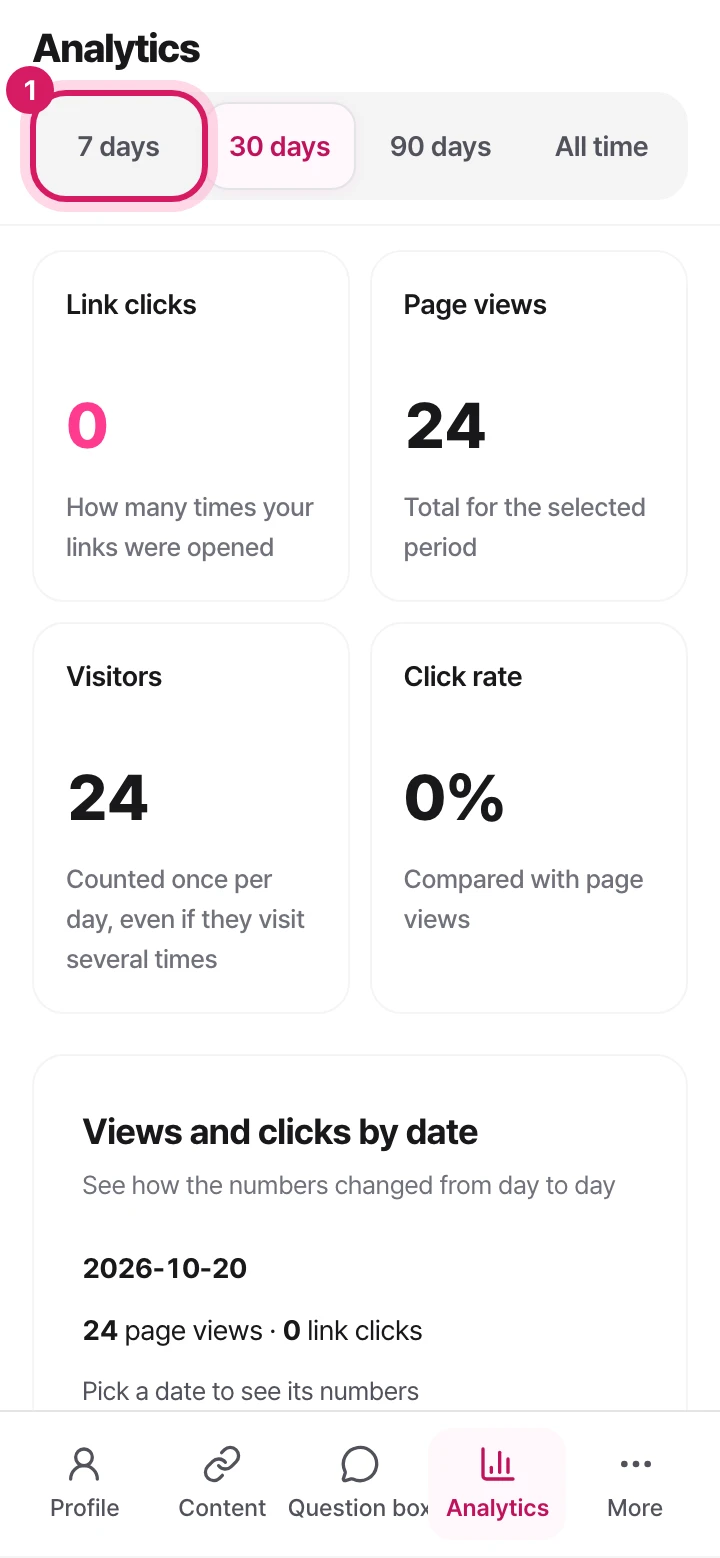
Analytics is where you see how people visit after you share your page and which links get their attention. Choose a period to compare first, then read page visits and link clicks together.
Follow these steps
Pick a period to compare: 7 days, 30 days, 90 days, or all time
Choose a period
At the top of analytics, choose 7 days, 30 days, 90 days, or all time. Pick a short period to see how a recent post did, or a long one to see the bigger trend. When comparing numbers, keep the period the same.
Read the daily trend and clicks by link
Look at the daily view and the click chart for days when something changed. Then check the clicks-by-link list to see which items drew interest. Also take a look at ‘Where did they come from?’ and ‘What device did they use?’.
Use it to decide how to adjust your page
Compare the stats with the dates you added a new link or shared on social. Rather than judging from small numbers over a short time, widen the period to see the trend, and use it when adjusting the titles or order of your important links.
Good to know
Page views
The total number of times your page was viewed in the period you chose. It can include repeat views, so it may not equal the number of people who visited.
Visitors
A count that treats several visits on the same day as one person. Read it separately from total views.
Link clicks and rate
Shows how many times links were opened and how often they were clicked compared with page views. Use it to see which links led to action.
One last check
Read the numbers with the period you've selected in mind. Items with no traffic source or device data may show an empty notice.
It says there are no numbers to show yet
If there were no visits or clicks in the selected period, you'll see an empty-state message. Make sure your page is public, share the address, and check again once visits come in. A data loading error is different from zero visits, so try again if you see one.
Where on a computer: Menu › My page › Content › Trash
Items you delete from Content can be found again in the trash. If you just don't want to show something for a while, turning off its public switch is easier than deleting. If you deleted something by mistake, you can bring it back within the restore period.
Follow these steps
Find the item in the trash
Open the trash from the content screen and look at the deleted item's title and restore-by date. If several items share a title, compare their details and pick the one to restore.
Restore it and return to your content list
Select ‘Restore’ on that item and wait for the result. If you see a message that you've reached your item limit, tidy up your current content list first and try again.
Check the details and visibility again
After restoring, make sure the item is back in your content list. Check its link, public switch, and order, and see whether it's ready to show to visitors.
Good to know
Hide
Keeps the item in your content list but hides it from visitors. To show it again, turn its public switch back on.
Delete and restore
A deleted item moves to the trash and can be restored for 30 days. Check the restore-by date shown on each item.
One last check
Don't rely on the restored message alone. Check that the item is back in your content list. Items past their restore period can't be brought back this way.
I can't see the item I want to restore
Check that the account you're logged in with is the one that created the item, and that the restore period hasn't passed since you deleted it. An item you hid from the page isn't deleted, so look in your content list instead of the trash.